Spine Width and Full Wrap Covers Explained for KDP
KDP spine width formula, full-wrap cover dimensions, safe zones, barcode clearance, and a step-by-step build workflow for puzzle book paperbacks.
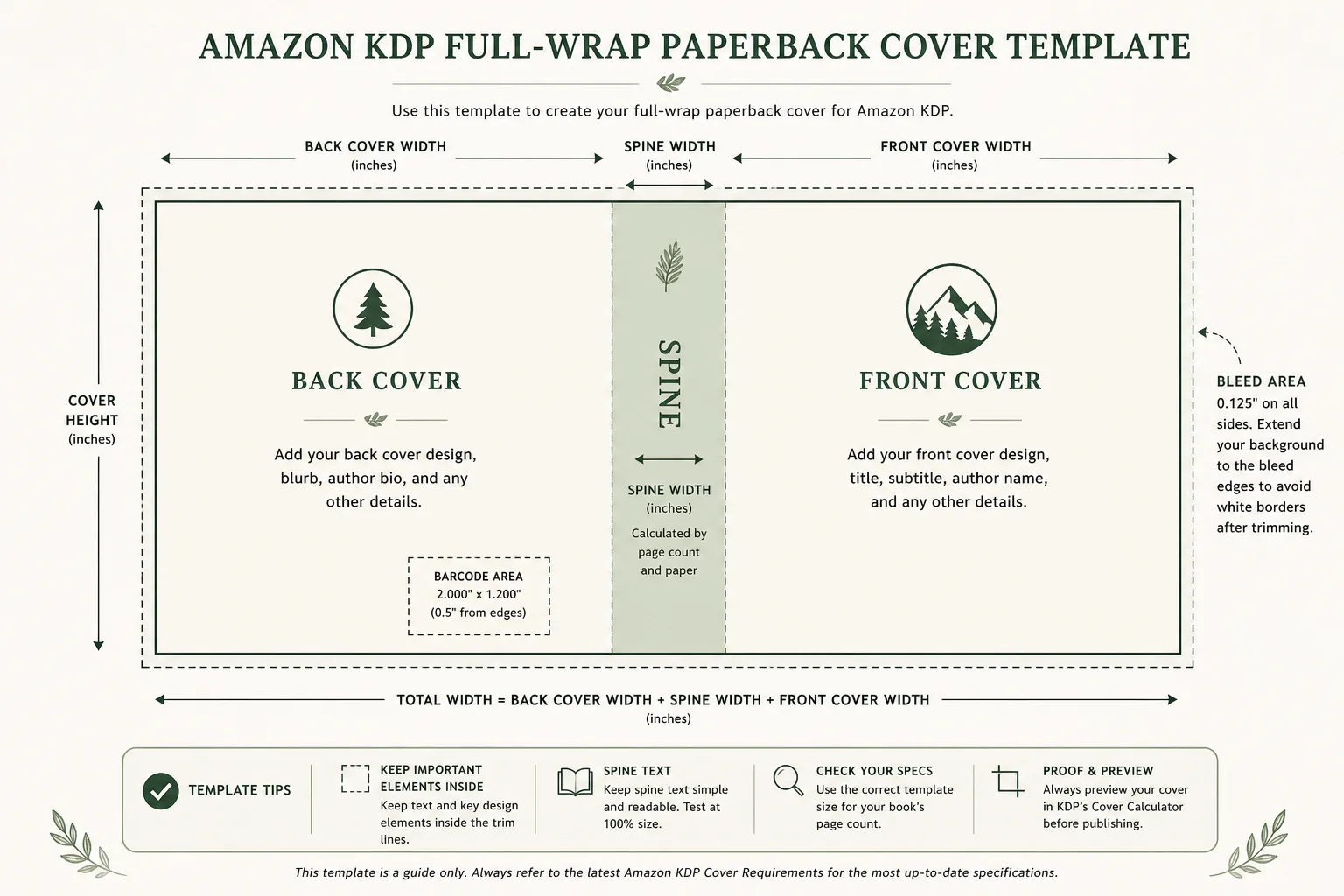
KDP spine width and full-wrap covers depend on trim, page count, and paper type. Lock page count in your interior PDF first, then size the wrap in the RodBooks cover designer. For trim context see best KDP trim sizes for puzzle books and the cover size calculator guide.
The spine is the narrowest, most technically demanding part of a KDP paperback cover, and the most common reason covers are rejected or look unprofessional in print. Get the spine width wrong by even a few thousandths of an inch and your spine text shifts off-center or onto the front or back cover. Get it right and your book looks like a professionally published trade paperback when sitting on a shelf.
This guide covers everything a KDP puzzle book publisher needs to know about full-wrap cover construction: how spine width is calculated, the formula for total cover dimensions, how to handle covers for very thin books (under 100 pages), how to include spine text safely, what KDP's cover file requirements are, and how to build and verify your cover before uploading.
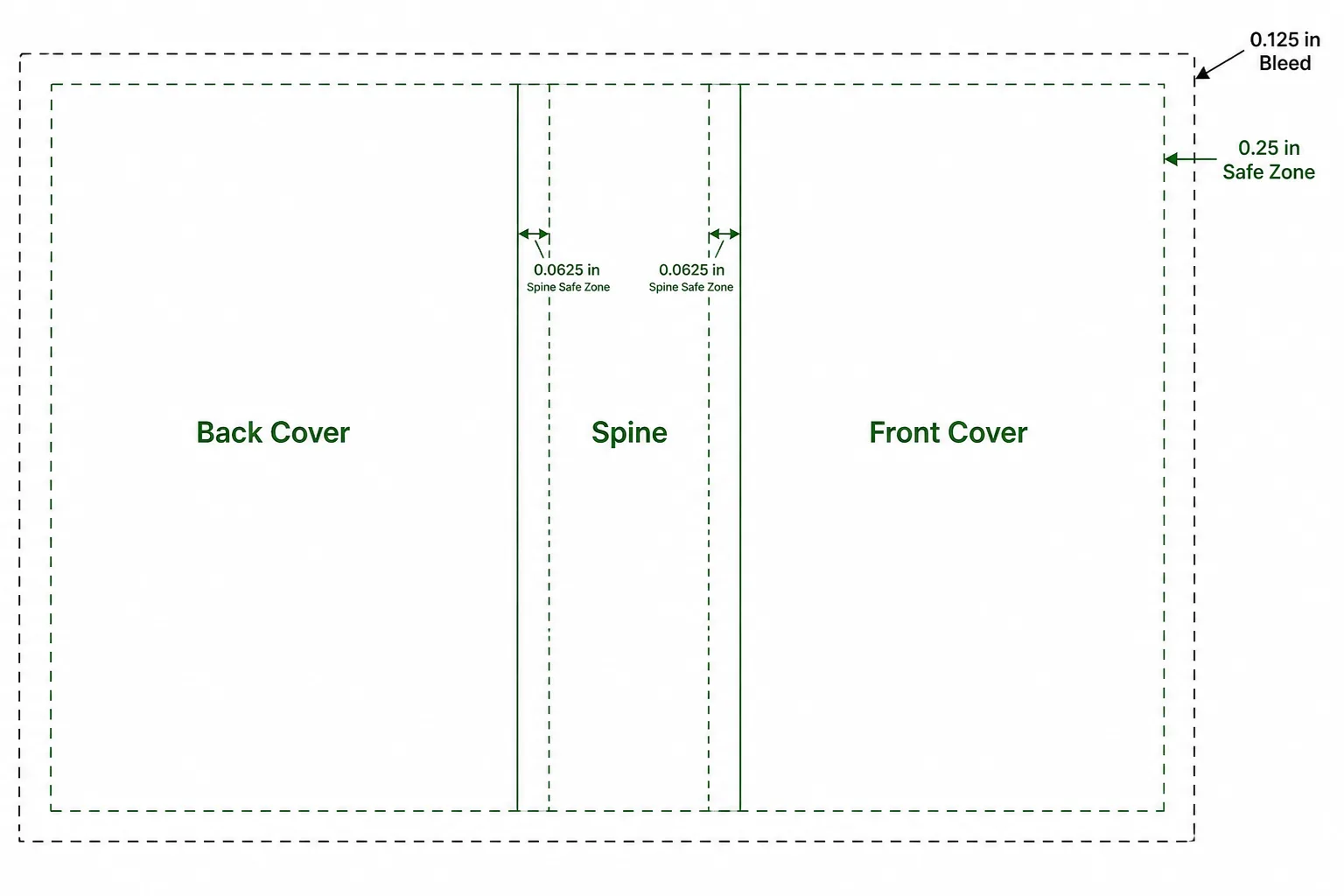
See also: bleed vs no bleed on wraps, thumbnail-first cover design, and page count drives spine width.
Understanding the Three-Panel Cover Structure
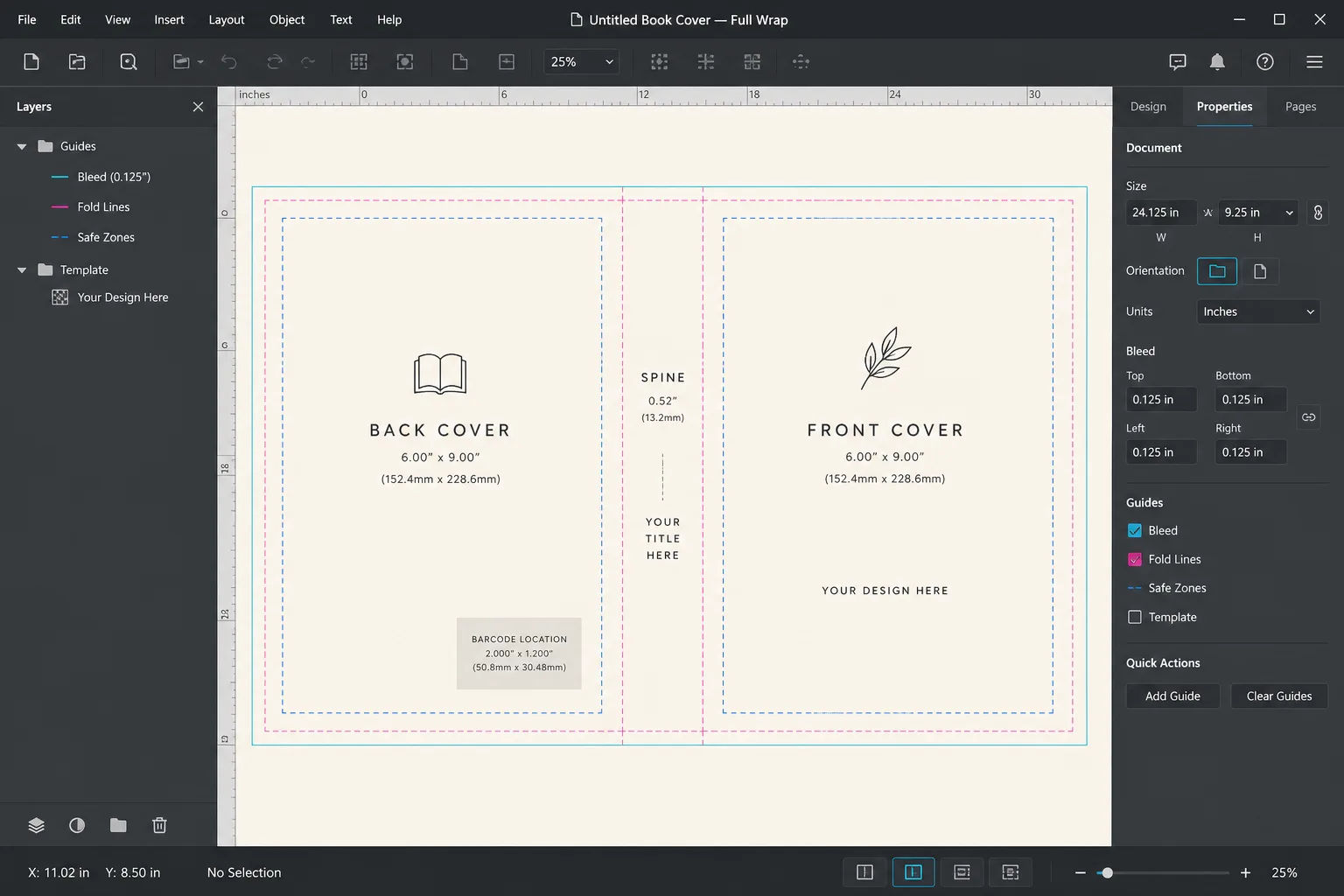
A KDP paperback cover is a single continuous image that wraps around the book. When unfolded flat, it has three sections from left to right:
Back Cover (left panel)
Same width as the front cover (equal to your trim width + bleed). Contains: barcode area (bottom-right, auto-placed by KDP), back cover copy, optional testimonials or descriptions.
Spine (center panel)
Width varies by page count and paper type. Contains: book title (truncated if necessary), author/brand name. Text on the spine runs from bottom to top, oriented so a book lying flat with the front facing up shows the title reading left-to-right when tilted.
Front Cover (right panel)
Width equal to trim width + bleed. Your primary selling image: title, difficulty label, visual, author name, volume number.
The Spine Width Formula
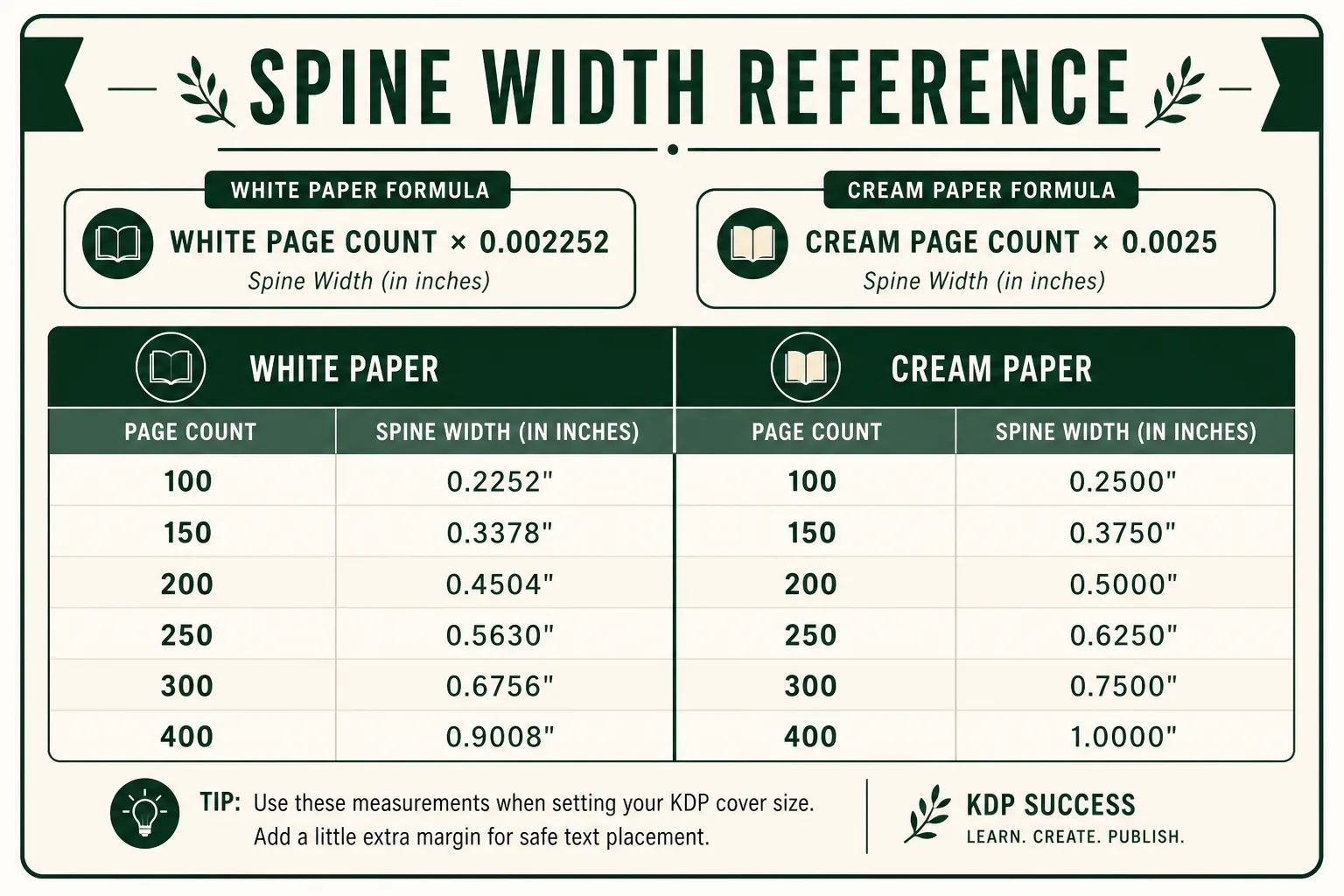
Spine width is determined by your page count and paper type. Amazon provides exact formulas:
White paper: spine width (in) = page count × 0.002252
Cream paper: spine width (in) = page count × 0.0025
Examples:
Page Count | White Paper Spine | Cream Paper Spine |
|---|---|---|
100 pages | 0.2252 in | 0.2500 in |
150 pages | 0.3378 in | 0.3750 in |
200 pages | 0.4504 in | 0.5000 in |
250 pages | 0.5630 in | 0.6250 in |
300 pages | 0.6756 in | 0.7500 in |
400 pages | 0.9008 in | 1.0000 in |
Important: These formulas give you the calculated width. KDP's actual system rounds this slightly and may vary by a few thousandths. Always use KDP's official Cover Calculator (found in the Paperback Cover setup step) to get the exact spine width for your specific page count and paper type, do not rely solely on the formula.
Total Cover Width Formula
Your cover PDF must be exactly the right total width. Use this formula:
Total Width = (Trim Width × 2) + Spine Width + (Bleed × 2)
Total Height = Trim Height + (Bleed × 2)
KDP's bleed is 0.125 in on all outer edges.
Examples:
Trim Size | Pages | Paper | Spine Width | Total Width | Total Height |
|---|---|---|---|---|---|
6 × 9 | 200 | White | 0.4504 in | 12.7008 in | 9.25 in |
6 × 9 | 150 | White | 0.3378 in | 12.5878 in | 9.25 in |
8.5 × 11 | 200 | White | 0.4504 in | 17.2008 in | 11.25 in |
8.5 × 11 | 250 | White | 0.5630 in | 17.3130 in | 11.25 in |
Critical: Even a 0.01-inch error in your total width will cause KDP to reject or warn your cover file, or result in the spine text shifting to one side when printed.
Spine Text Rules
Minimum Spine Width for Text
KDP requires a minimum spine width of approximately 0.25 inches (roughly 111 pages on white paper) before allowing text on the spine. If your book is under this threshold, leave the spine blank. KDP will handle it, and attempting to add text on a spine that is too narrow will result in text bleeding onto the front or back cover.
For puzzle books, most standard volumes (100+ puzzles) will exceed this threshold easily. A 100-puzzle sudoku book (approximately 120 pages) has a spine wide enough for title text.
Spine Text Orientation and Sizing
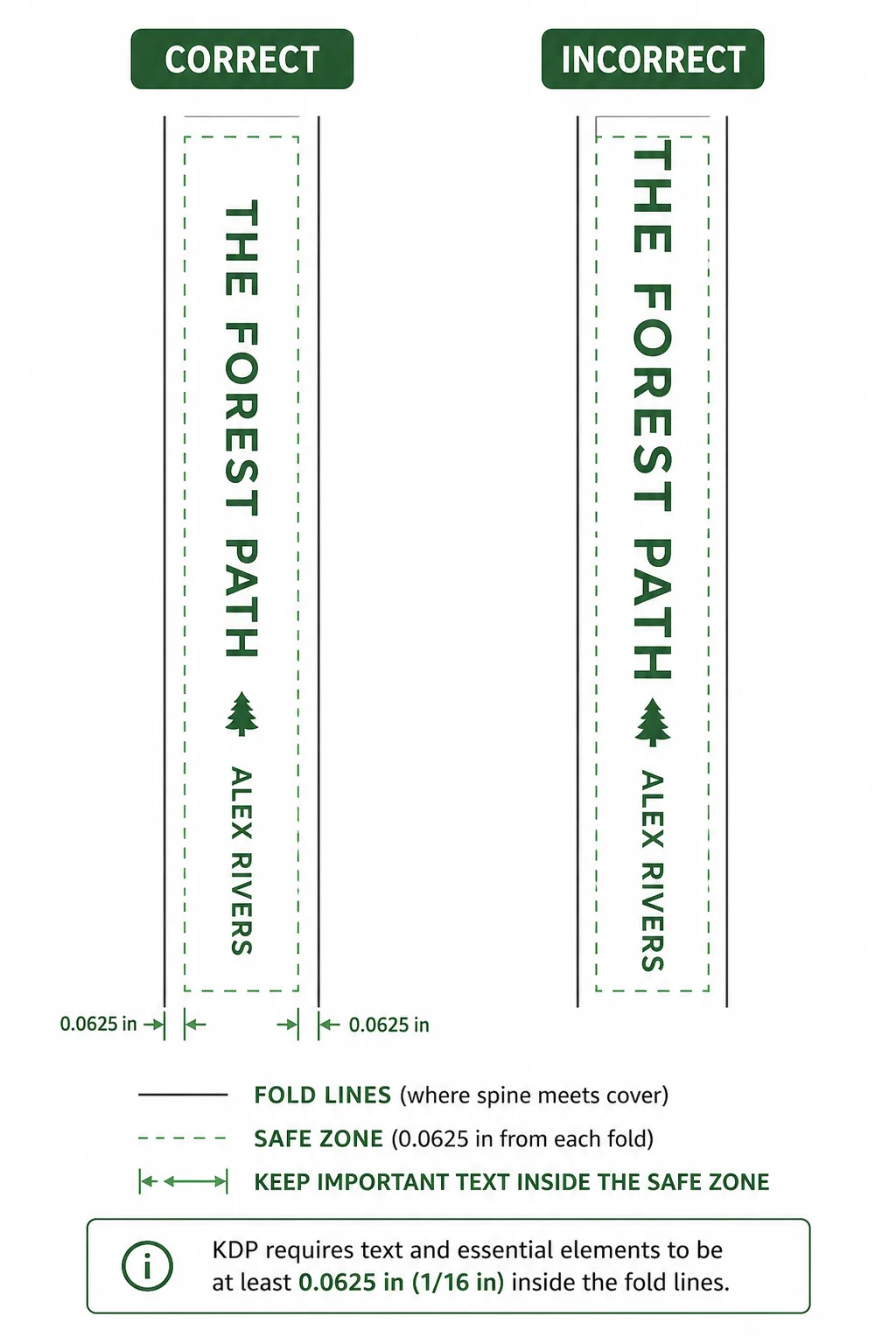
Spine text runs from the bottom of the book to the top, when the book lies flat with the front cover facing up, the text reads left to right.
Font size for spine: A spine that is 0.45 in wide (200 pages) can accommodate approximately 8-10pt text comfortably. A 0.30 in spine (133 pages) allows 6-7pt text maximum. Never try to fit more than two text elements (title + author) on a narrow spine.
Safe zone for spine text: Keep all spine text at least 0.0625 in (1/16 in) from each fold line (the boundary between spine and front cover, and spine and back cover). This accounts for manufacturing variance, covers are not trimmed with perfect precision.
What to Include on the Spine
Title (can be abbreviated for narrow spines): "Easy Crossword Puzzles" not the full subtitle
Author/brand name (optional but recommended for series recognition)
Volume number (if series)
Do NOT include: logos (too small to see), pricing, or the same decorative elements from the front cover (they will not register at spine width).
Back Cover Design Essentials
The back cover serves two functions: KDP requires space for the barcode (auto-placed in the bottom-right corner), and it is an additional sales surface for buyers who flip the book over.
Back cover layout:
Barcode area: KDP places the barcode automatically in the bottom-right corner of the back cover. Leave a clear white area approximately 2 × 1.25 in in the bottom-right corner. Do not place design elements in this zone.
Back cover copy: 150-250 words of descriptive text (similar to your Amazon description's first section). Include your book's key benefits, page count, difficulty, audience, solution section.
Optional elements: Series logo, author bio (1 sentence), visual accent matching front cover
Back cover safe zone: Keep all content 0.25 in from the top, bottom, and outside (left) edge of the back cover panel.
Building the Full-Wrap Cover File
Recommended workflow:
Get exact dimensions from KDP's Cover Calculator. Do not use the formula alone, confirm in the official calculator. Note: the calculator updates after you upload your interior, so finalize your interior page count first.
Set up your design file at the correct total dimensions. In Canva, Adobe Express, or Photoshop/Illustrator, create a canvas at the exact total width × total height (including bleed).
Add guides for fold lines. Place vertical guides at x = 0.125 in (left bleed edge), x = (0.125 + trim width) (back/spine fold), x = (0.125 + trim width + spine width) (spine/front fold), and x = (total width, 0.125) (right bleed edge).
Add the safe zone guides. Add additional guides 0.25 in inside all outer edges, and 0.0625 in inside each fold line on the spine panel.
Design within safe zones. Place all text and critical imagery inside the safe zones. Background colors and non-critical imagery can extend to the bleed edges.
Export as PDF. Flatten all layers. Embed all fonts (or outline text). Export in RGB color mode at 300 DPI.
Upload to KDP and verify in the Cover Previewer. KDP's cover previewer shows a 3D rendered preview of your book. Check: spine text position, front cover cropping, back cover barcode area.
Common Full-Wrap Cover Errors
Error 1: Wrong spine width Using a calculated formula without confirming in KDP's Cover Calculator. The formula and the actual KDP system can differ by a few thousandths of an inch, causing misalignment.
Error 2: Text in the barcode zone Any design element in the bottom-right corner of the back cover will be covered by KDP's auto-placed barcode. Leave that zone clear.
Error 3: Spine text outside the safe zone Spine text placed right at the fold line will shift to the front or back cover after printing variance. Always maintain 0.0625 in clearance from each fold line.
Error 4: Wrong color mode KDP prints in RGB. Covers designed in CMYK will have color shifts when converted. Design in RGB from the start.
Error 5: Page count changed after cover was built If you change your interior page count (add puzzles, add front matter) after building your cover, your spine width changes. Rebuild the cover at the new dimensions, the old spine width is now wrong.
Using RodBooks for Cover Dimensions
RodBooks Cover Designer calculates your exact spine width based on your exported page count, sets up the correct total cover dimensions automatically, and positions safe zone guides so you design within spec without manual calculation.
Frequently Asked Questions
What happens if my spine width is slightly wrong?
KDP may reject the file with an error message about cover dimensions, or it may accept it but the printed spine text will shift toward the front or back cover. Always verify dimensions in the KDP Cover Calculator before finalizing your design file.
Can I design my cover in Canva?
Yes. Canva supports custom canvas sizes and PDF export. Set the canvas to your exact total cover dimensions (in pixels at 300 DPI, or in inches if using Canva Pro). Use the grid/guide feature to mark fold lines and safe zones. Export as PDF Print for the final file.
How do I handle a spine that is too narrow for text?
Design the spine as a solid color or gradient matching your front cover, no text. KDP handles covers with blank spines without issues. For books under ~110 pages, a blank spine is the safest choice.
Does the spine color need to match the front cover?
No requirement, but it should be visually coherent. A stark mismatch between spine and front cover looks unprofessional. Use a color from your front cover's palette for the spine background.
Technical Checklist
Page count finalized before cover design begins
Spine width pulled from KDP Cover Calculator (not formula alone)
Total cover dimensions calculated: (trim × 2) + spine + (0.125 × 2) wide, trim + 0.25 tall
Design file set up at exact total dimensions
Fold line guides placed at correct x positions
Safe zone guides placed (0.25 in from outer edges, 0.0625 in from fold lines on spine)
All text inside safe zones
Barcode zone (bottom-right back cover, 2 × 1.25 in) kept clear
Color mode: RGB
Resolution: 300 DPI minimum
Export: flattened PDF with embedded fonts
Uploaded and verified in KDP Cover Previewer